When you receive your multi-channel remote with your shades, we have already programmed the shades to the remote. It is necessary to assign the shades to the channels you want them to operate on before you can control them from the remote.
The shades are listed in the remote: Shade 1, Shade 2... etc. It is first necessary to determine which shade number on the remote corresponds to each window. They may not necessarily be in order.
PREMIUM MULTI CHANNEL REMOTE CHANNEL ASSIGNMENT INSTRUCTIONS
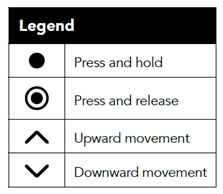
Tap the right/menu button on the paddle switch labeled MENU until the screen displays CHANNEL 1. Press and hold the menu/right button for two seconds until the menu appears displaying 4 lines of text CHANNEL, SHADE, ZWAVE, and BATT OK.
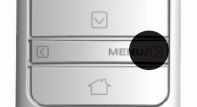
Select CHANNEL by pressing and releasing the menu button briefly. Tapping left or right again will decrease or increase the channel number respectively.
Note: If the remote displays CHANNEL 1 NONE the remote does not have any shades to assign and would need to be paired or associated following steps here: (link to Z-Wave: Starting over with programming using Premium Remote. : Support Center
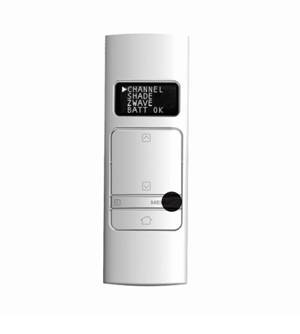
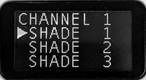
Start with Shade 1 (there will be an arrow to the left indicating which shade is currently selected.)
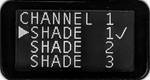
Press and hold the menu/right button for two seconds until a check mark appears to the right of the shade number. The shade will jog and a check mark will appear. If the wrong shade jogs, repeat this step to remove the check mark. If assigning multiple shades to a group channel, checkmark all shade numbers that should respond to the group. Note: Maximum number of 8 shades per channel.
Change channel and repeat steps to assign shades to desired channels.
For additional support:
Email: motorization.support@springswindowfashions.com,
Customer Service Team: 1-800-221-6352
Note: Responses could take up to 24 hours
Was this article helpful?
That’s Great!
Thank you for your feedback
Sorry! We couldn't be helpful
Thank you for your feedback
Feedback sent
We appreciate your effort and will try to fix the article