If you receive an error that your Gateway belongs to another user. (image below) while, or shortly after, setting up your new Gateway, it is possible that the gateway was still connected to your account.
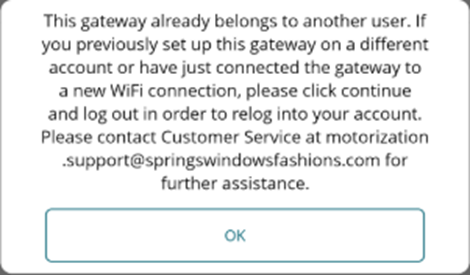
If you encounter this error while, or shortly after, setting up your new Gateway, it is possible that the gateway was still connected to your account. The gateway does not check what account it is connected to, just if it is bound to an account when it reports this error.
To confirm if this gateway is connected to your account, press “OK” and the app will take you back to the start of the device wizard for setting up the Gateway. Press the back arrow in the top left corner, and this should take you to the “My Gateways” page, showing your gateway as paired, but maybe offline:
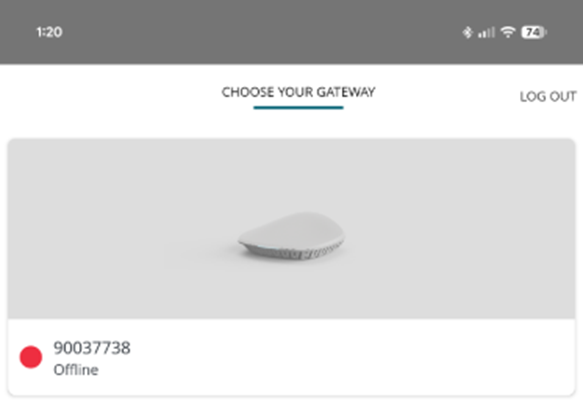
It may take a few minutes for the gateway to connect, but once the gateway is connected and online, this screen should update to show the gateway as “online,” allowing you to tap on the gateway to connect to it and proceed with programming.
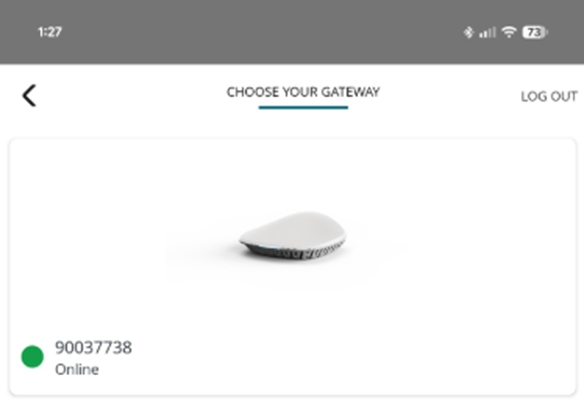
If the gateway does not show online after about 5 minutes, press the plus sign to add a gateway and try to go through the process one more time.
If still unsuccessful, please try to factory reset the Gateway.
Note: Factory resetting the Gateway does not remove it from the original account it was registered to.
If original account is available -
- Log-in to the first/original account.
- Choose the Gateway Serial Number that needs removed.
- Select "Advanced"
- Select "Remove Gateway"
If you are unable to log-in to the original account - Please contact customer service via email or phone, be sure to have the Gateway serial number available.

For additional support:
- Email: motorization.support@springswindowfashions.com,
- Customer Service Team: 1-800-221-6352
Note: Responses could take up to 24-48 hours
Was this article helpful?
That’s Great!
Thank you for your feedback
Sorry! We couldn't be helpful
Thank you for your feedback
Feedback sent
We appreciate your effort and will try to fix the article