To assign shades to channels of your remote using the TaHoma by Somfy app, please follow the instructions below:
- Open the TaHoma by Somfy app and click on the three dots at the bottom right of the screen
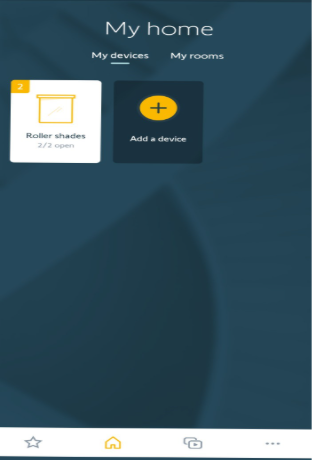
- Select “Configure the installation”
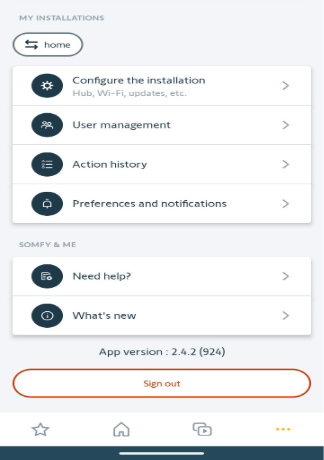
- Scroll down and select “My central remote controls”
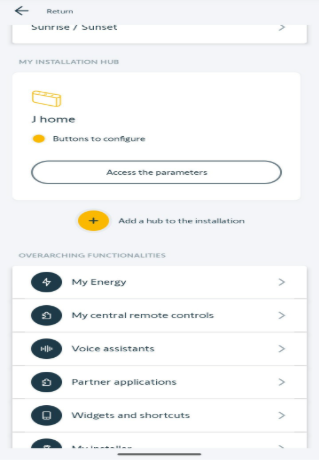
- Select the remote you want to assign the shades to
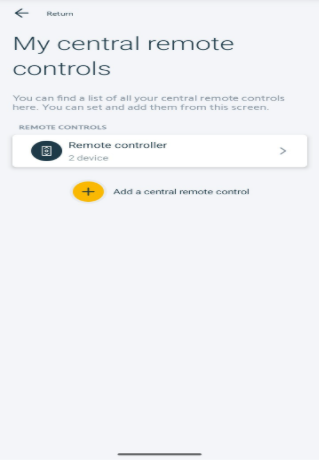
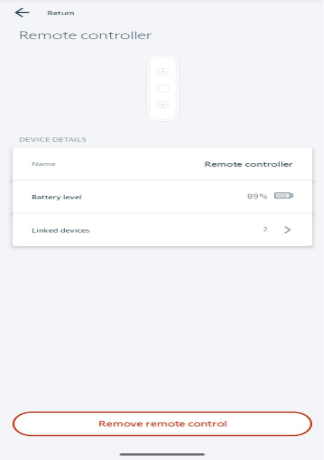
- Select “Linked devices”
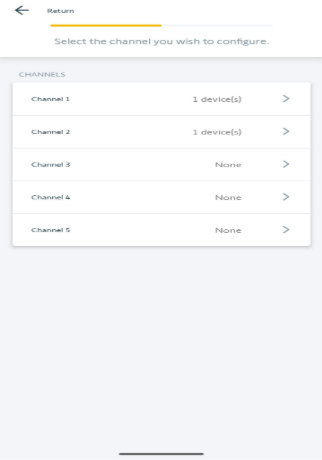
- Select the channel you want the shade to be assigned to
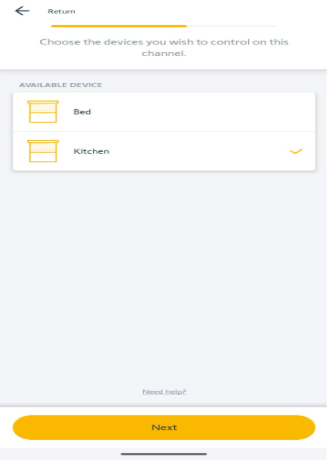
- Select the shade or shades, then select “Next”
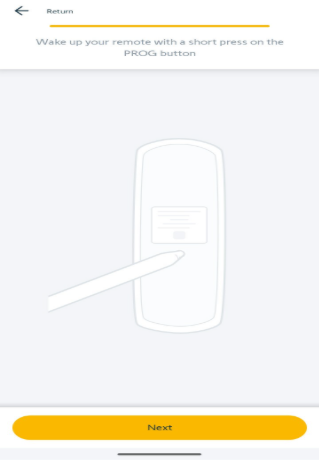
- Wake up the remote by briefly (less than .5 seconds) pressing the programming button on the back of the remote then tap “Next”
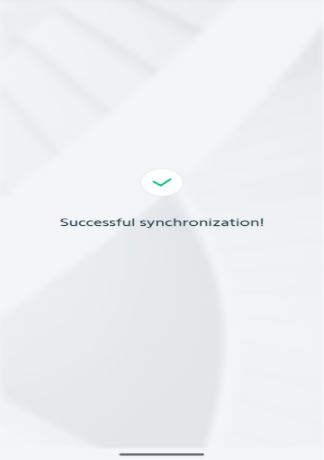
- The LED on the remote will flash orange while pairing. Once the remote and motor synchronize, the LED on the remote will flash green and then turn off. The app screen will show “Successful synchronization!”
For additional support:
Email: motorization.support@springswindowfashions.com, responses could take up to 24 hours
Customer Service Team: 1-800-221-635
Was this article helpful?
That’s Great!
Thank you for your feedback
Sorry! We couldn't be helpful
Thank you for your feedback
Feedback sent
We appreciate your effort and will try to fix the article