Before you start: Identify which remote(s) already controls the shade(s). If multiple shades work on the same channel, or if you are using a single channel remote, you will need to disconnect power from all other shades you are not programming. For rechargeable motors, you will need to put the motor to sleep (link).
Follow the steps below to remove a shade from an incorrect channel or remote.
- With the remote that you want to keep controlling the shade, select the channel, if applicable, using the button at the bottom of the remote until the correct channel light is flashing.
- Using a small item, like a paperclip, press and hold the programming button located on the controller (see picture) until the shade does a jog (short up/down motion).
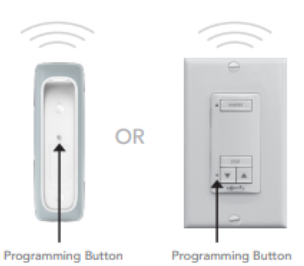
- Once the shade has jogged, you will need to use the remote, or channel, you want the shade removed from.
- Using a small item, like a paperclip, quickly tap the programming button on the back of the remote to make the shade jog. NOTE: Do not hold the programming button.
- Confirm the shade now operates only with the correct remote, or channel, by using the up or down arrows on the front of the remote.
For additional support:
Email: motorization.support@springswindowfashions.com, responses could take up to 24 hours
Customer Service Team: 1-800-221-6352
Was this article helpful?
That’s Great!
Thank you for your feedback
Sorry! We couldn't be helpful
Thank you for your feedback
Feedback sent
We appreciate your effort and will try to fix the article